*/
Bundle like a pro! In part 5 of her series, Elizabeth Bowden explains how to make the most of Acrobat Pro – from bookmarking and highlighting, to linking and redacting
Welcome back – this article focuses on making PDF bundles in Acrobat Pro work for you rather than against you.
Adobe’s search bar is multi-functional: use it to find both words and tools. Everything below can be accessed via the search bar or the All tools menu. The images in this article will give the following helpful context.
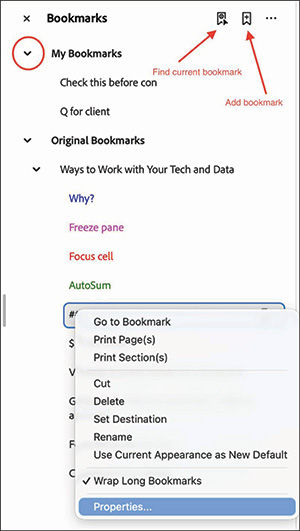
Bookmarks are the closest you will get to digital Post-its. To create them quickly, highlight text and press Command + B; Acrobat will automatically use the highlighted words as the bookmark title. If text isn’t selectable, run Scan & OCR first.
You can add bookmarks in line with the pre-existing ones. Use the Find current bookmark button and then highlight and press Command+B. Or you can create your own section of bookmarks – you are not limited to any pre-existing ones.
You can change the bookmark layout by adjusting bookmark locations and levels by dragging bookmarks up or down and indenting or outdenting them. Right-click the bookmark and use Properties to format bookmarks with colours, bold, or italic.
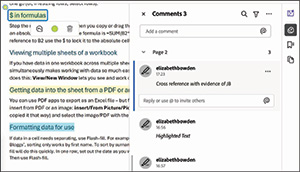
You aren’t limited to one highlighter colour. Right-click any highlight to change its colour. Add comments by clicking the highlight and using the comment button.
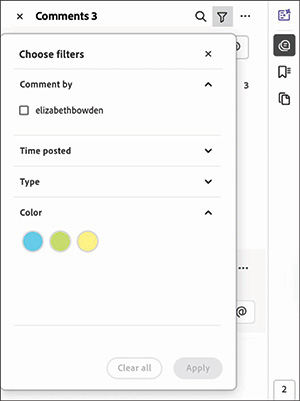
Open the comments sidebar to view all annotations. You can filter by colour. This is handy where you highlight by theme – one for factual issues, one for law, etc.
You can add hyperlinks within a PDF e.g. to an exhibit reference. Highlight the reference, right-click,>Create link>Go to page view, navigate to the page you want and Set link.
For a link Right-click >edit, enter the correct page number. For bookmarks, you can also scroll to the correct page, then hover over the bookmark right-click> Set destination.
If your PDF is jumping from page to page, you can Enable scrolling for smooth scrolling.
If you want to view two pages simultaneously, use the new window tool – Window>New Window. Then arrange your windows.
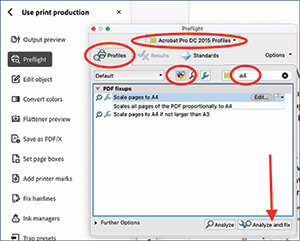
Use Preflight to rescale pages to A4. Use the following Preflight image for the settings you need to scale to A4. Then Analyse and fix.
If your PDF page numbers do not match the actual number on the page, use page labels to get them to match. Add a prefix to the unnumbered pages, e.g., index.
Access Page Labels via the search bar, Organise pages, or right-click a thumbnail.
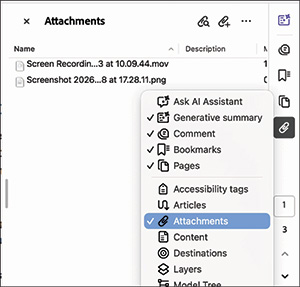
You can attach files to your PDF. Use the search bar or right-click the right sidebar (where bookmarks and comments are). Word of warning: don’t send a PDF with attachments to anyone unless you’re sure they should have the files.
Adobe’s redaction tool is good, but redacting is laborious. Adobe redaction can search for text, speeding up the process. Adobe will search for exact matches; you need to search for variations. The search is not infallible; you must do final checks.
Adobe Acrobat Pro can:
-(002).jpeg?sfvrsn=931a77b_2)
Elizabeth Bowden is a barrister at College Chambers, Southampton and practises in family finances and civil litigation. Elizabeth is never too far from a spreadsheet and is evangelical about tech.
Welcome back – this article focuses on making PDF bundles in Acrobat Pro work for you rather than against you.
Adobe’s search bar is multi-functional: use it to find both words and tools. Everything below can be accessed via the search bar or the All tools menu. The images in this article will give the following helpful context.
Bookmarks are the closest you will get to digital Post-its. To create them quickly, highlight text and press Command + B; Acrobat will automatically use the highlighted words as the bookmark title. If text isn’t selectable, run Scan & OCR first.
You can add bookmarks in line with the pre-existing ones. Use the Find current bookmark button and then highlight and press Command+B. Or you can create your own section of bookmarks – you are not limited to any pre-existing ones.
You can change the bookmark layout by adjusting bookmark locations and levels by dragging bookmarks up or down and indenting or outdenting them. Right-click the bookmark and use Properties to format bookmarks with colours, bold, or italic.
You aren’t limited to one highlighter colour. Right-click any highlight to change its colour. Add comments by clicking the highlight and using the comment button.
Open the comments sidebar to view all annotations. You can filter by colour. This is handy where you highlight by theme – one for factual issues, one for law, etc.
You can add hyperlinks within a PDF e.g. to an exhibit reference. Highlight the reference, right-click,>Create link>Go to page view, navigate to the page you want and Set link.
For a link Right-click >edit, enter the correct page number. For bookmarks, you can also scroll to the correct page, then hover over the bookmark right-click> Set destination.
If your PDF is jumping from page to page, you can Enable scrolling for smooth scrolling.
If you want to view two pages simultaneously, use the new window tool – Window>New Window. Then arrange your windows.
Use Preflight to rescale pages to A4. Use the following Preflight image for the settings you need to scale to A4. Then Analyse and fix.
If your PDF page numbers do not match the actual number on the page, use page labels to get them to match. Add a prefix to the unnumbered pages, e.g., index.
Access Page Labels via the search bar, Organise pages, or right-click a thumbnail.
You can attach files to your PDF. Use the search bar or right-click the right sidebar (where bookmarks and comments are). Word of warning: don’t send a PDF with attachments to anyone unless you’re sure they should have the files.
Adobe’s redaction tool is good, but redacting is laborious. Adobe redaction can search for text, speeding up the process. Adobe will search for exact matches; you need to search for variations. The search is not infallible; you must do final checks.
Adobe Acrobat Pro can:
Bundle like a pro! In part 5 of her series, Elizabeth Bowden explains how to make the most of Acrobat Pro – from bookmarking and highlighting, to linking and redacting

The Chair of the Bar reports back
Susie Griffin on the admin that keeps barristers from billable work
Clement Cowley, Partner at The Penny Group, explains how global events can influence the performance of pensions and ISAs, and why taking a long-term approach to investing is often the most effective strategy
Mário Barroso, Head of R&D and Method Development at AlphaBiolabs, discusses what family law professionals need to know about hallucinogens, from the main hallucinogenic drugs encountered in family proceedings, to their effects and the testing options available
Harmony Christian Ministries is the latest charity to benefit from a £500 donation from AlphaBiolabs via the company’s Giving Back initiative
By David Green

At the start of her term, Chair of the Bar 2026 Kirsty Brimelow KC set out a series of priorities for the year ahead. One of those priorities was children in the justice system
As the world becomes more digital, Barbara Vinagre Mota examines international research into the mental health consequences of judges’ exposure to graphic and immersive evidence, highlighting the importance of support systems
In an era of patient-centred care and growing concern over misconduct in medical settings, why do women still lack the right to choose women consultants for examination and treatment? Charles Davey investigates
Reviewed by Daniel Barnett
James McNeill Whistler at Tate Britain until 27 September Rothko in Florence at Palazzo Strozzi until 23 August Reviewed by Stephen Cragg KC